 Arcane Apps
Email Transmute Available Now
An Outlook add-in that saves emails and attachments as PDF — directly to SharePoint, OneDrive, or your device. One click from the reading pane, or bulk archive an entire mail folder in one go.
What it does
Save a single email
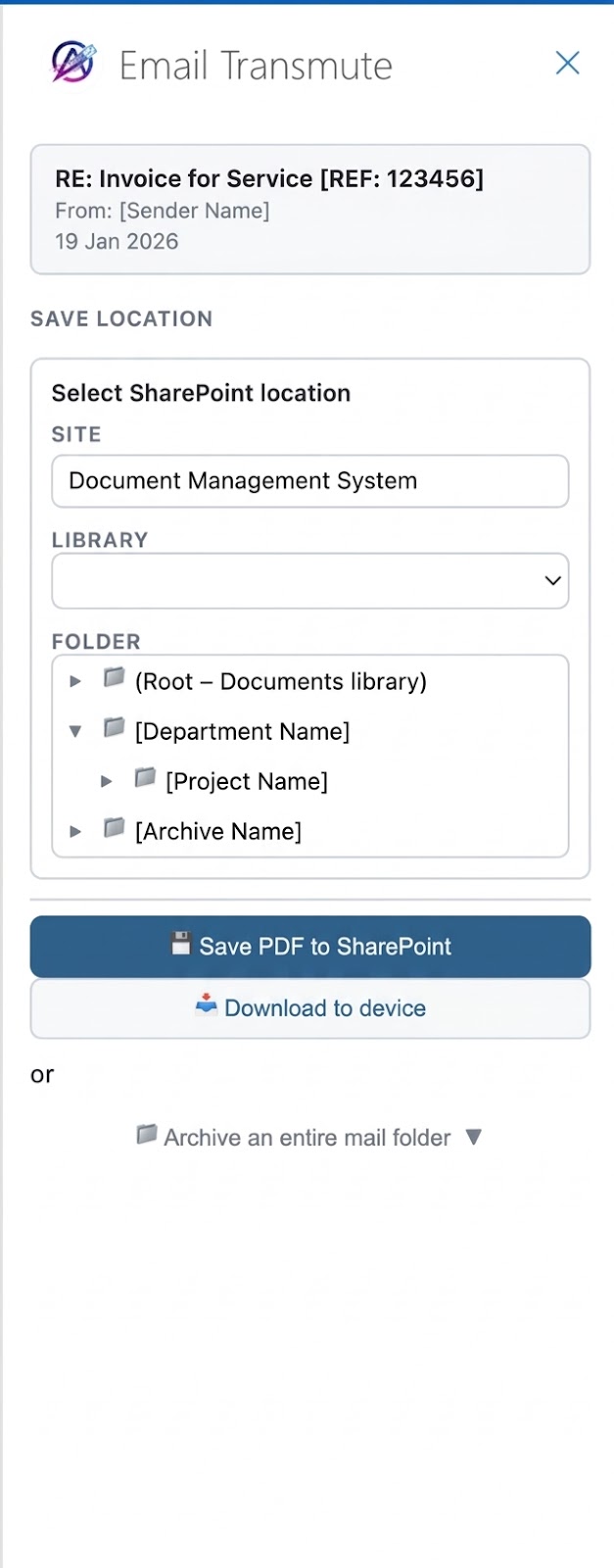
Pick a folder, click save
Open the Email Transmute panel from the Outlook ribbon. Your last-used folder is remembered, so subsequent saves are a single click.
- Browse any SharePoint site or OneDrive
- Navigate the folder tree and select a destination
- Save to SharePoint or download to device
- Confirmation shown with a direct link to the file
Choose how attachments are handled
Email Transmute
✕
Merge or keep originals
When an email has attachments, choose how they are saved:
- Single PDF — email body and all supported attachments are converted and merged into one searchable PDF
- Subfolder — email is saved as a PDF; original files (Word, Excel, images, etc.) are saved alongside it in a named subfolder
Emails without attachments always save as a single PDF regardless of mode.
Bulk archive an entire mail folder
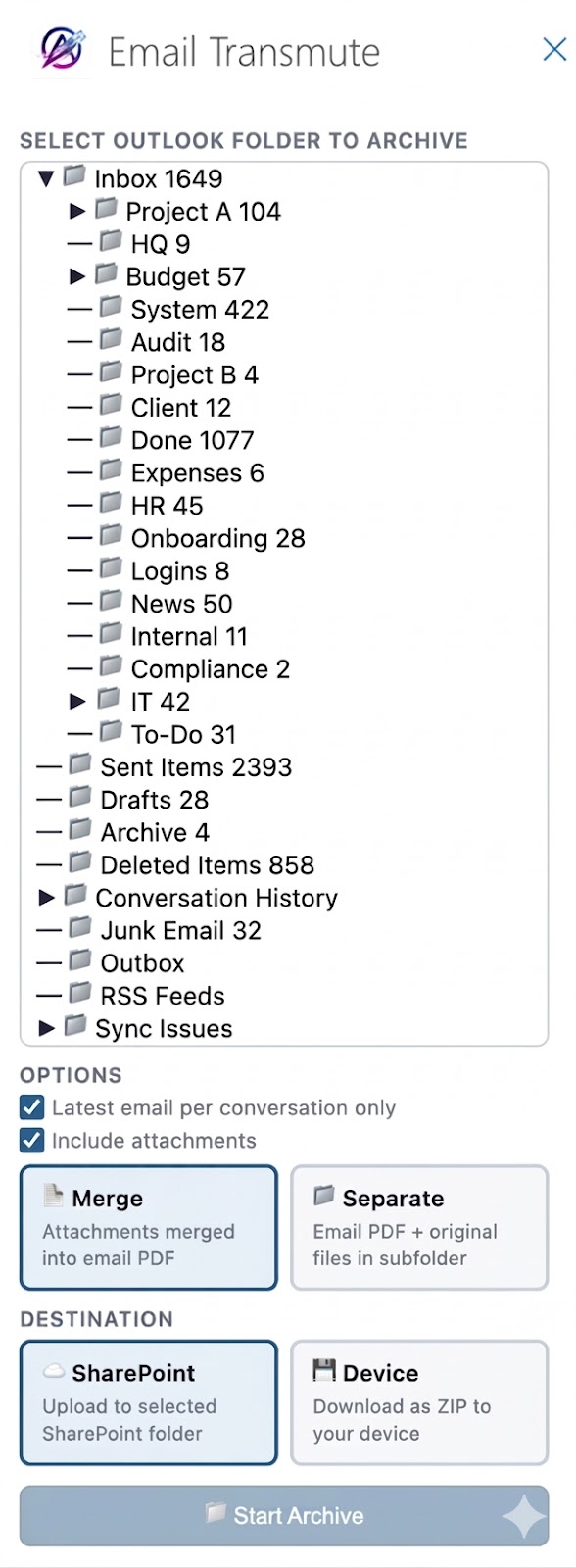
Archive a whole folder at once
Select any Outlook mail folder and archive every email in it — no manual processing one by one.
- Browse your full Outlook folder tree with email counts
- Deduplicate by conversation — keep only the latest email per thread
- Choose merge or separate mode for attachments
- Save to SharePoint, or download the whole archive as a ZIP
- Failed emails are skipped and logged — the archive continues regardless
- Progress shown per email during processing
Integrations
Email Transmute is built entirely on Microsoft's own APIs. No third-party services, no data leaving your tenant.
Why Email Transmute?
Saving an email to SharePoint sounds simple. Here is what it actually looks like without Email Transmute:
Without Email Transmute — up to 8 steps per email, per attachment
- 1Open the email in Outlook
- 2File → Print → change the printer to "Save as PDF"
- 3Click Print → navigate to a folder → type a filename → Save
- 4Switch to a browser tab, open SharePoint, navigate to the right folder
- 5Upload the PDF
- 6Go back to Outlook → find each attachment → download it individually
- 7Choose a save location for each file
- 8Return to SharePoint and upload each attachment separately
At ~20 seconds per email with one attachment, 100 emails takes ~30 minutes of manual work. Email Transmute does it in 3 steps.
| Solution | Steps to save | Attachments → PDF | Save to SharePoint | Bulk archive | Download locally | Cost |
|---|---|---|---|---|---|---|
| Email Transmute | ✓ 3 steps | ✓ Merge or separate | ✓ Direct from Outlook | ✓ Whole folders | ✓ ZIP to device | Contact us |
| Manual (Print to PDF) | 8 steps per email + each attachment | ✗ Each file separately | ✗ Manual upload | ✗ One at a time | — | ~30 min per 100 emails |
| MessageExport (Encryptomatic) | 2–3 steps | ✓ Yes | ✗ No direct SharePoint | ✓ Bulk export | ✓ To local folder | ~$80 one-time per user |
| Foxit PDF Editor (Outlook add-in) | 2–3 steps | ✓ Yes | ✗ No | ✗ No | ✓ Local / Foxit Cloud | ~£11/user/month |
| OnePlaceMail / Axpoint | 2–3 steps | ✗ Files as original | ✓ Yes | ✗ Limited | ✗ No | From $4/user/month (10 user min) |
| Power Automate + Encodian | Automatic only — requires IT setup | ✓ Yes | ✓ Yes | ✓ Yes (flow-based) | ✗ No | From ~£999/yr + M365 licence |
Get Email Transmute for your organisation
We handle deployment via the Microsoft 365 Admin Center. One conversation, then your whole team has it in Outlook.
Talk to us about Email Transmute